
Installation and Licensing
Leda utilizes WIBU-SYSTEMS licensing technology. Prior to installing Leda, you must first install CodeMeter and connect the hardware dongle to your computer to enable Leda functionality.
The following installation guide uses Windows as an example.
System Requirements
- Operating System: Windows 10 / 11 (64-bit)
- Memory: 8 GB RAM
- Storage: Minimum 1 GB available space
Installing CodeMeter
Navigate to CodeMeter User Downloads and locate the Windows installation package. Click download.
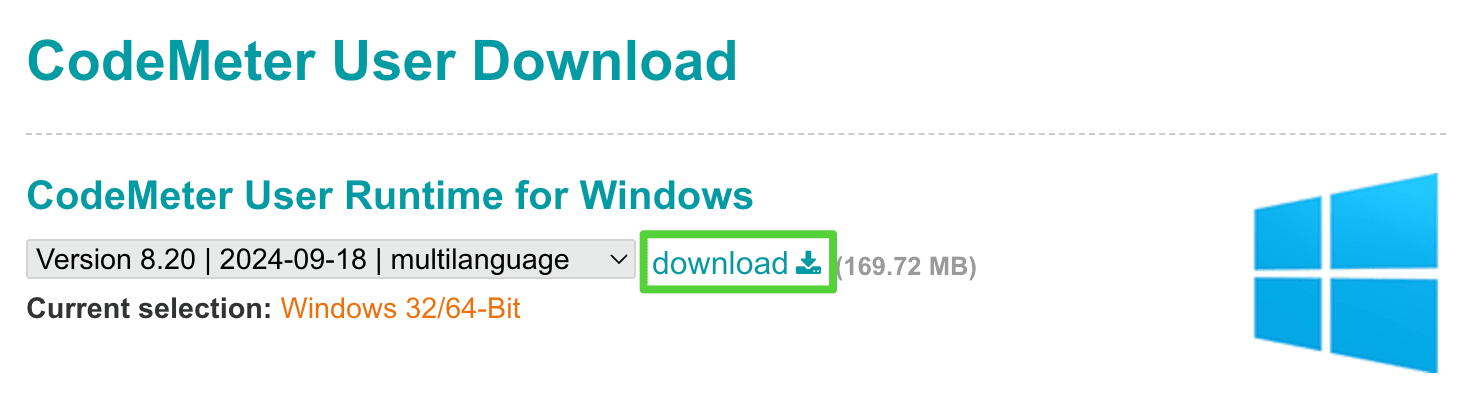
If the download does not start automatically, click the direct link.
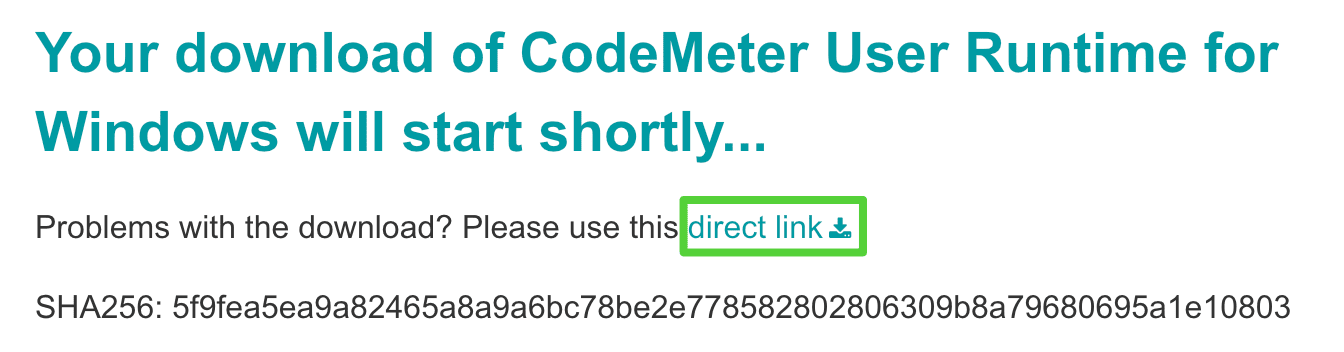
Once downloaded, proceed with the installation, and then start CodeMeter Runtime.
If the CodeMeter Control Center displays “CodeMeter service has been stopped.”, a Chinese blog from WIBU offers a solution CodeMeter服务无法启动?.
This blog provides a key information, SafeNet process will interfere with CodeMeter. Open the Task Manager (shortcut Ctrl+Shift+Esc) to check if there is a SafeNet process running. If so, it is recommended to exit the SafeNet process and its service-related software before using CodeMeter.

Installing Leda
Users who have received a hardware dongle will receive an email containing the Leda installation package. If you haven’t received this email, please contact support@dreapex.com.
After installing CodeMeter, you can proceed with the Leda installation.
License Activation and Launching Leda
Insert your hardware dongle into your computer and launch Leda either by double-clicking the desktop shortcut or through the Start menu.
If Leda fails to launch and displays the following dialog, it indicates that either the hardware dongle is not connected or not properly activated.
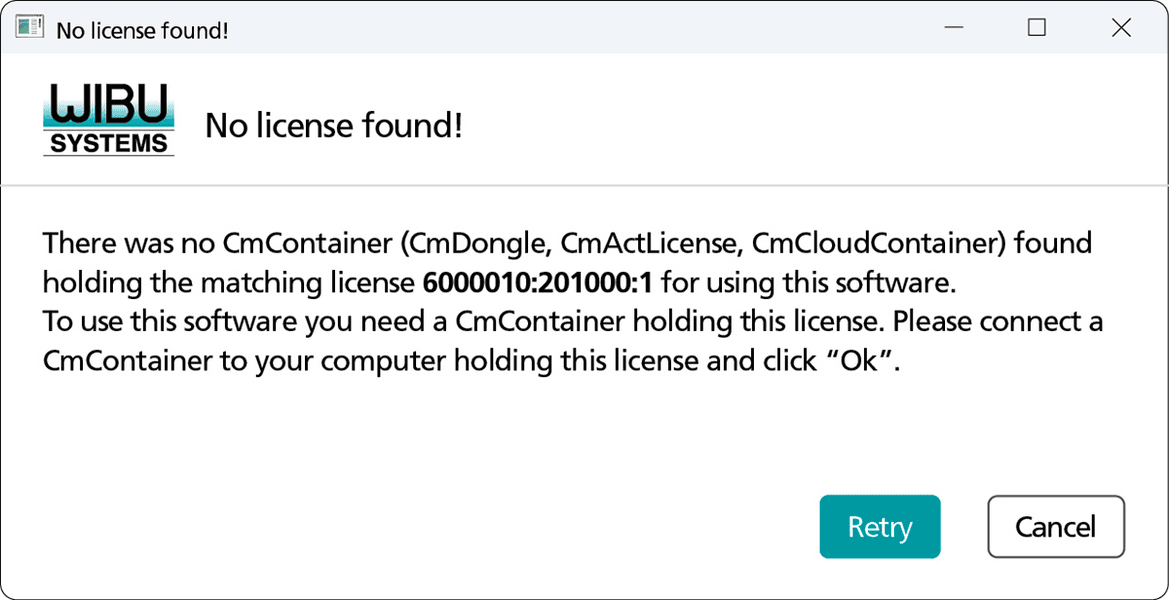
Please verify the following:
- Dongle is properly connected to the computer.
- CodeMeter is installed and running. Confirm that the service is active.
- License hasn’t expired. Open CodeMeter Control Center, click
WebAdminin the bottom right, and check theValid Untilfield for your license expiration date.
If none of the above resolves the issue, press Ctrl+Shift+Esc to open Task Manager (Windows), locate Leda, select it, and click End Task. Then attempt to relaunch Leda. If these steps don’t resolve the issue, please contact support@dreapex.com.
If you encounter the following Microsoft Defender SmartScreen warning:
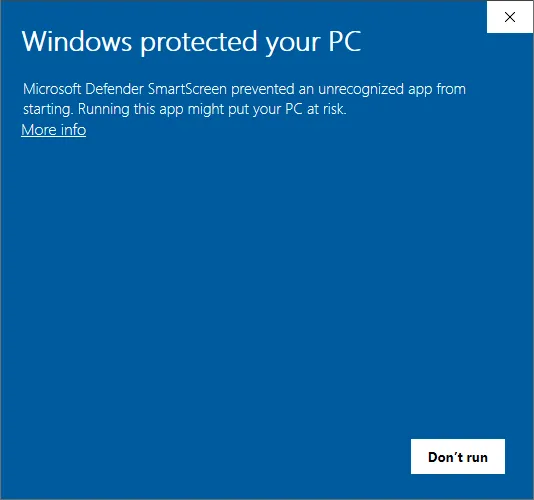
Try the following solutions:
- Right-click the Leda icon and select “Run as Administrator”
- Exclude Leda from Windows Defender scanning. For detailed instructions, see: Add an exclusion to Windows Security - Microsoft Support
- Consider using alternative security software instead of Windows Defender
Checking License Validity
Open CodeMeter Control Center, click WebAdmin in the bottom right corner. Locate the Valid Until field to view your dongle’s expiration date.
License Renewal
When your license expires and you wish to renew it, contact support@dreapex.com to confirm renewal details. Then follow these steps:
- Insert the dongle into your computer and ensure CodeMeter is installed.
- Right-click in any location (preferably in a dedicated folder for renewal files) → New → WIBU Control File
- Select CmDongle Remote Programming Kontext-Datei → Create
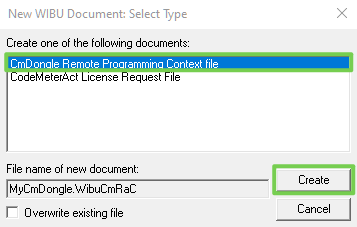
- Select the option with Firm Code 6002135 and click OK
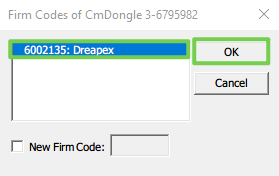
- The previous step generates a
MyCmDongle.WibuCmRaCfile in your folder. Send this file to support@dreapex.com, including your hardware dongle code (format: X-XXXXXXX, e.g., 3-6795982) in the email. - Upon verification, we will email you a
MyCmDongle.WibuCmRaUfile. Download and double-click this file to complete the renewal process.